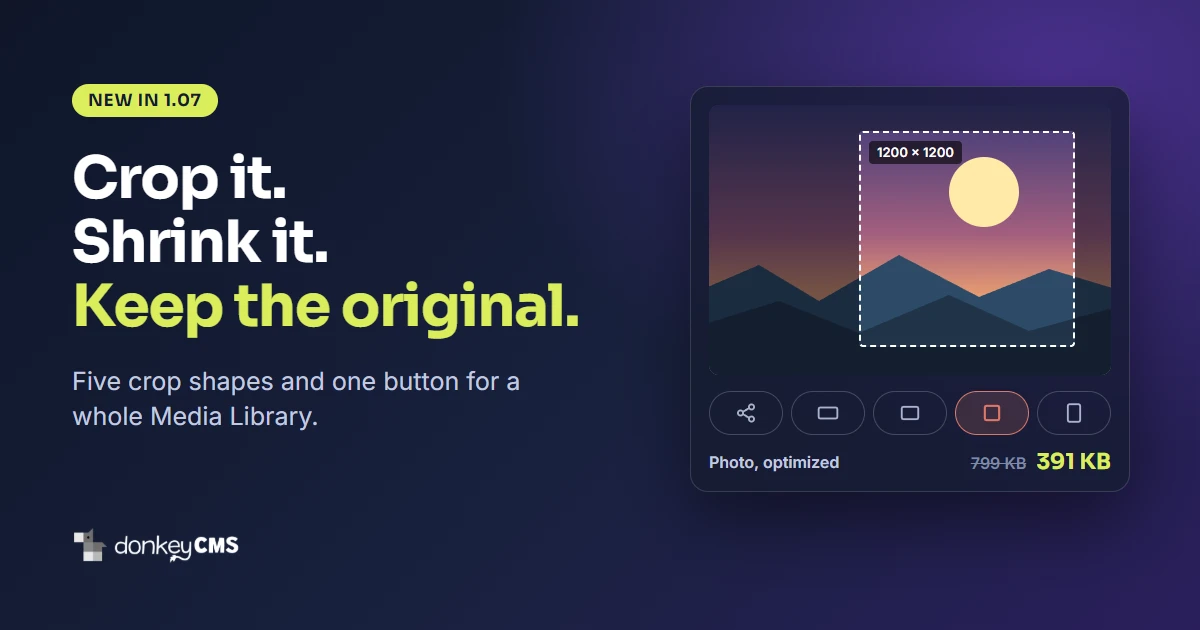
Every blog collects pictures the way a kitchen drawer collects takeaway menus. A photo from the phone here, a screenshot there, a banner someone emailed in 2023. Nobody plans it. One day you open the Media Library and there are two hundred of them, most of them far heavier than they need to be, and none of them in the shape you need today.
A donkey will carry whatever you load onto it without complaining. That does not mean the load has to be this heavy. DonkeyCMS 1.07 takes some weight off, and three things changed.
One button for every old picture
Since version 1.06, the Image Optimizer has turned every new upload into WebP, a format that shows the same picture in a much smaller file. That was good news for new pictures and no help at all for the ones already there.
Now there is Optimize all. It sits under the pictures in your Media Library, and its button tells you how many are waiting. Press it and every older JPG and PNG becomes a lighter WebP, a few at a time, so even modest hosting keeps up.

We spent most of our time on what could go wrong, so here is what happens around that button. A backup is made before a single picture is touched. Your posts are updated by themselves, so a post that showed the old picture shows the new one. If another website linked to your old JPG, that link still opens the picture. And a few pictures are left alone on purpose, such as your site’s logo or one that would not get any smaller. You get a short list that says which and why.
Keep the originals, just in case
Compression is a one-way street, which makes people nervous, and rightly so. So there is a switch called Keep originals. With it on, the untouched file of every optimized picture is stored in a locked folder that no visitor can open.
The bar above your pictures shows how much space the library and the kept originals take. Show originals lists them, and any one of them can be put back with Restore, downloaded, or deleted when you are sure you will never need it.
Worth knowing before you press Restore: a phone writes hidden details into every photo, such as where it was taken. The optimized pictures your visitors see do not carry them. A restored original does, because it is the original. DonkeyCMS reminds you before you confirm.
Crop any picture, in five shapes
Until now you could crop a featured image at the moment you chose it, and only then. If you dragged twenty photos into the library on Monday, they stayed uncropped until each one met a post.
In 1.07 every picture in the library has a Crop button. It opens the focal-point cropping tool with five shapes to pick from:
Social share (1200 × 630), the shape of a featured image
Wide (16 : 9)
Photo (4 : 3)
Square (1 : 1)
Portrait (3 : 4)
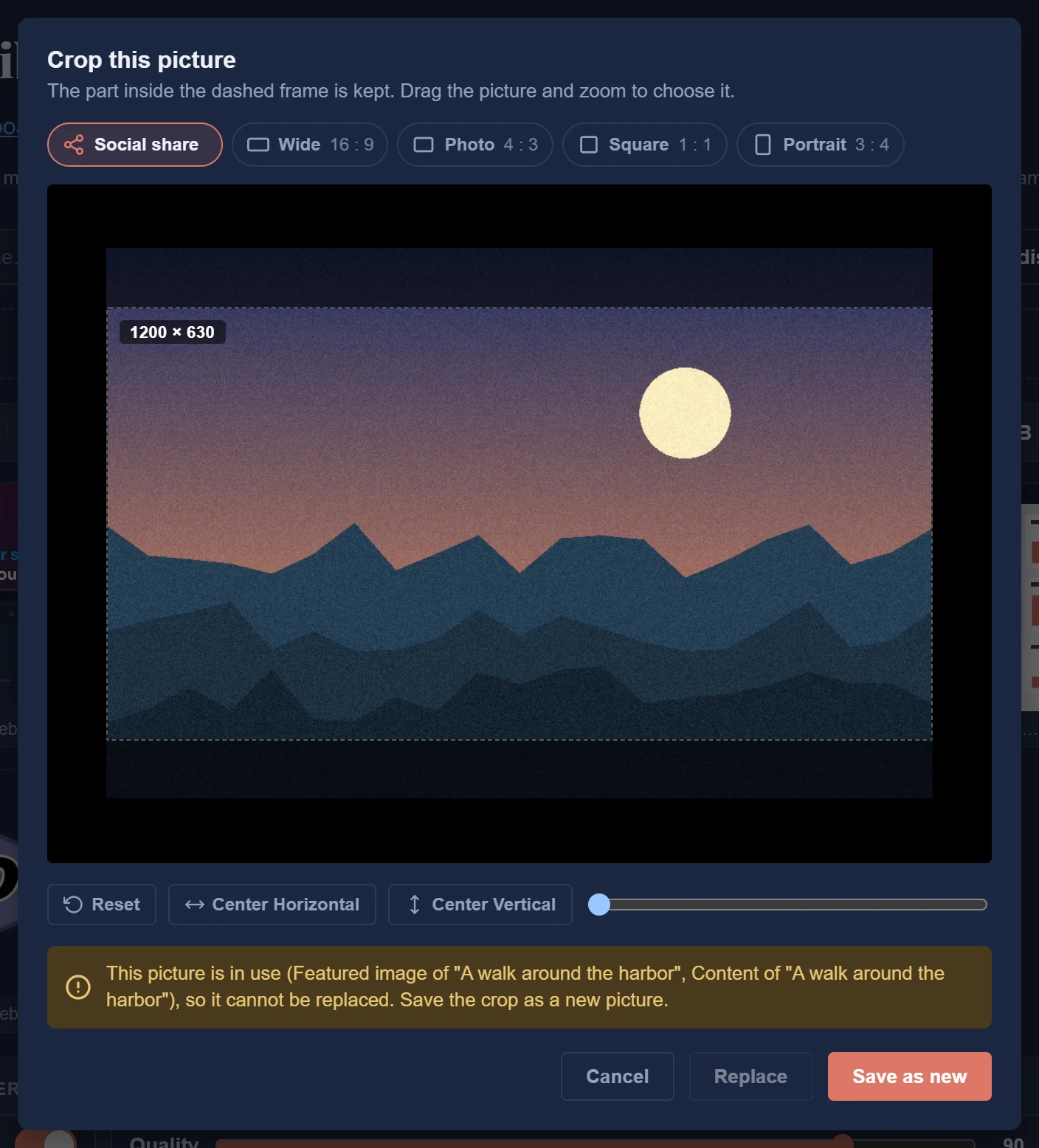
Drag the picture, zoom, and then choose what happens to the result:
Save as new adds the crop as another picture and leaves the first one exactly as it was.
Replace puts the crop in the picture’s place.
On one point we are stubborn, which runs in the family: a picture that is in use is never replaced. If a published post shows it, the tool tells you which post and offers only Save as new. Nobody wants to hear from a reader that last year’s article now has half a face in it.
Got a whole batch to do? Tick the pictures, press Crop selected, and the tool walks you through them one by one. It even remembers the shape you picked last, which is more than we can say for ourselves.
The focal-point cropping tool comes to Pro
This tool used to belong to the Business and Agency plans. Pro had a checkbox that cut every featured image from its middle, which works beautifully until the interesting part of your photo is somewhere else.
From 1.07, Pro has the real thing. Each time you choose a featured image, you decide which part social networks show.

Who gets what
Every plan, Free included: the Image Optimizer itself. New uploads become WebP and large photos are scaled down.
Pro, Business and Agency: Optimize all, Keep originals and Restore (together they are called Image Optimizer Plus), cropping in the Media Library, and the focal-point cropping tool.
DonkeyCMS adds a blog to any website that is not WordPress, whether you already have one or are still building it, by hand, with a framework or from a template. If that sounds like your website, the Free plan is a good place to start, and the pricing page compares the rest.
How to get it
Open License & Updates in your admin panel and click update. It takes a few seconds and makes a backup first. Then open the Media Library, scroll down, and press the new button. Your blog will not look any different. It will just be easier to carry.
The details are in the docs: Media Library and Images.