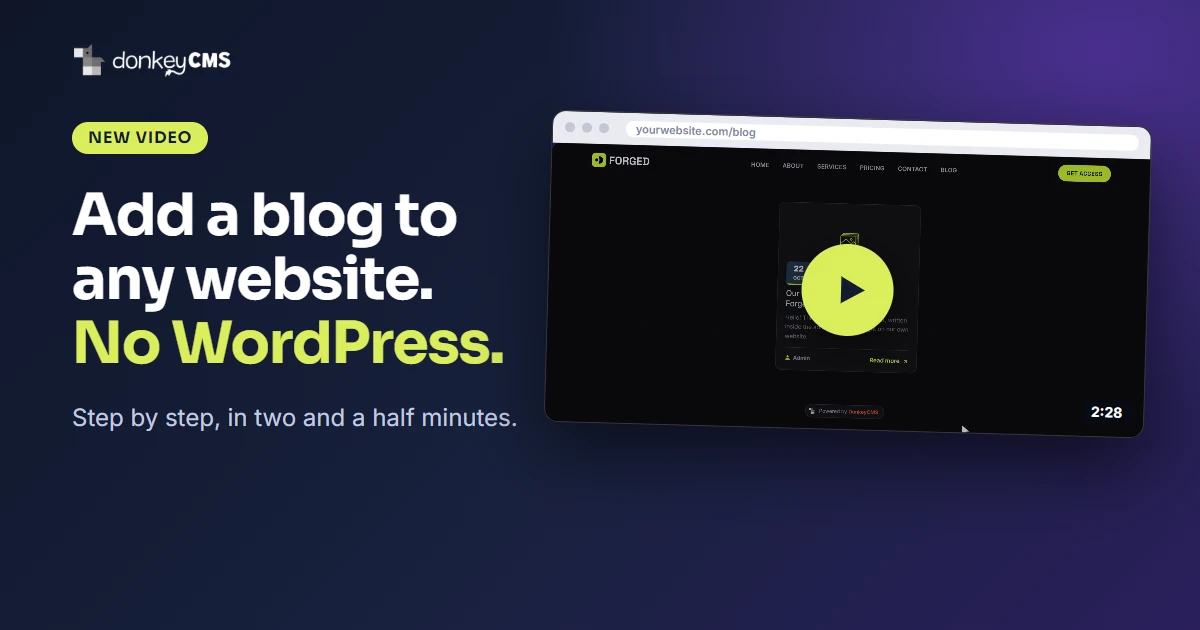
You built a website. It looks the way you want, and it is not WordPress. Now someone asks for a blog, and moving the whole site just for that sounds like a bad weekend.
It does not have to be. Here is the whole job on video, in two and a half minutes, on a ready-made template.
What the video shows
We use Forged, a free gym template, as the example. The steps are the same for most templates and for most websites you made yourself, including sites built with AI tools.
Install DonkeyCMS. Upload the Free plan to a
/blogfolder on your hosting and open the installer. It asks for your MySQL database name, user and password.Let Frame Setup find your menu. Frame Setup reads your page and finds the menu and footer, so the blog looks like the rest of your site and not like a separate product. It can also add a Blog link to your menu.
Add it to your page. The page that should carry the Blog link gets two short lines in place of its own copy of the menu and footer. Frame Setup tells you which lines.
Write your first post in the editor and publish it. It appears on your own domain, under your own menu.
The video runs on a home computer, so no real hosting is shown. On your hosting the only difference is that you type your own database details.
What you need
A website you already have, or are building, and hosting with PHP and MySQL. That is almost every shared hosting plan. DonkeyCMS has a Free plan, so you can try all of this before paying for anything.
Using a template? We wrote step-by-step template guides with exact line numbers for four popular ones.
The template in the video is Forged by PrebuiltUI. The narration is an AI-generated voice. The donkey declined to be recorded.
What would you like to see next?
Which website should we add a blog to next: a template, or something you built with an AI tool? Tell us in the comments on the video.
New here? Read which DonkeyCMS plan is right for you, or go straight to the docs.